
Articles
When a portal only accepts PDF: how to convert photo receipts and proofs without losing clarity
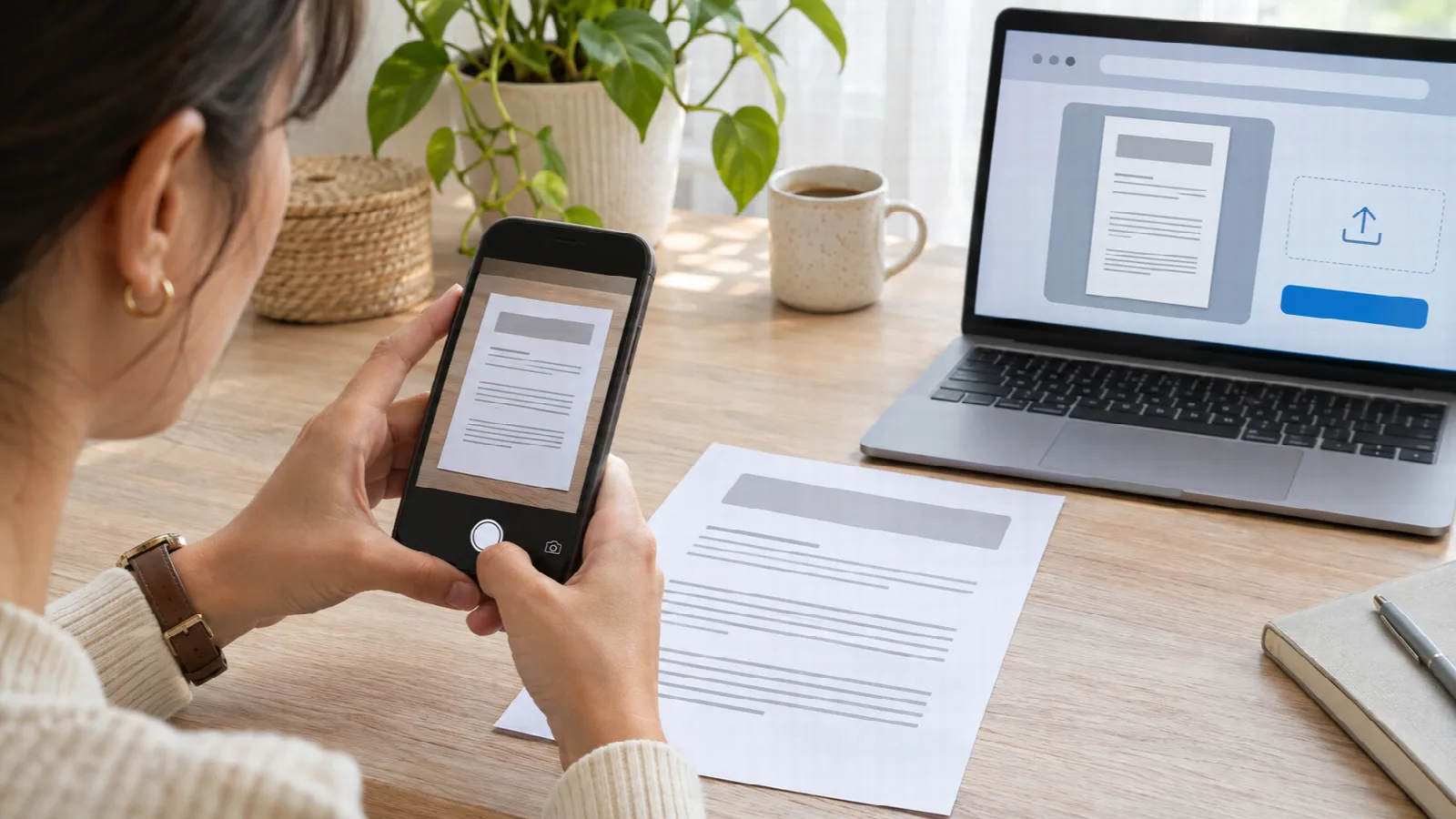
Few digital registration hurdles cause as much frustration as completing an extensive application for a job, university admissions, or government assistance, only to receive a blocking alert on the final submission step: “Invalid file type. Only files with the .PDF extension are accepted (maximum file size: 2 MB)”.
The common immediate reflex is to rename the file extension from `.jpg` to `.pdf` in the smartphone file browser — which inevitably corrupts the container and triggers an upload error — or to turn to automated online converters that compress the image so harshly that small bank authentication stamps and text lines become illegible.
In this practical guide, you will learn why official platforms strictly require PDF files, how to preserve maximum sharpness on barcodes and payment timestamps, and which settings ensure your file stays comfortably below strict upload megabyte limits.
Why official portals reject raw JPG and PNG image uploads
The widespread institutional requirement for PDF files is not mere bureaucratic inertia; it is rooted in three sound technical considerations:
- Predictable physical print dimensions: A JPG photo taken with a contemporary 48-megapixel camera has raw pixel dimensions (e.g., 8000 × 6000 px) but no intrinsic physical print scale. When sent to a printer in an administrative office, it may print across multiple pages or shrink to a postage stamp. The PDF standard embeds physical sheet dimensions in millimeters (such as standard A4: 210 × 297 mm or Letter: 216 × 279 mm).
- Cross-platform rendering consistency: PDF files encapsulate layout, fonts, and color spaces uniformly across all operating systems (Windows, macOS, Android, iOS, and Linux). The reviewing agent sees precisely what you generated on your device.
- Malware security filtering: High-volume web portals utilize strict security sandboxes. Raw image formats can carry malicious payloads hidden inside EXIF metadata headers, whereas PDF parsing allows more robust structural validation.
Balancing resolution: readable text versus upload size caps
The central challenge when converting proof photos into PDF is resolving two competing requirements:
- Text and barcode legibility: Payment receipts, utility bills, and bank transfers contain fine alphanumeric codes, transaction identifiers, and QR codes. Excessive image compression blurs these critical characters, leading to manual review rejection.
- Rigid file size caps: Portals commonly enforce strict attachment ceilings between 1 MB and 5 MB per file. Unprocessed smartphone camera pictures routinely exceed 8 MB to 14 MB.
The solution is not to downscale image resolution arbitrarily, but to apply intelligent photographic compression within the PDF layout engine.
Recommended configuration guide by proof type
Within Image to PDF, you can directly configure page size, margin spacing, and compression quality:
| Document Type | Sheet Format | Margin Setting | Quality Profile | Typical Output File Size |
|---|---|---|---|---|
| Payment / Wire Transfer Receipt | A4 Portrait | Narrow (5 mm) | Balanced (Web & Email) | 250 KB to 600 KB |
| Utility Bill (Water, Power, Internet) | A4 Portrait | Standard (15 mm) | Balanced (Web & Email) | 350 KB to 750 KB |
| Diploma / Educational Certificate | A4 Landscape | Standard (15 mm) | High Quality | 800 KB to 1.8 MB |
| Signed Contract / Legal Filing | A4 Portrait | Narrow (5 mm) | High Quality | 900 KB to 2.2 MB |
How to guarantee flawless readability on small characters
To ensure the reviewing officer approves your submission without requesting re-uploads, apply these preparation rules:
- Crop out background clutter: If your receipt is printed on half-letter or thermal paper, crop away the tabletop surrounding the document. This ensures that the actual text occupies the maximum usable area on the virtual A4 page.
- Leverage automatic orientation: The converter detects whether the source photograph is portrait or landscape and automatically matches page orientation, preventing sideways layouts.
- Select Balanced quality mode: This setting optimizes image density while keeping typography and numeric codes crisp for human and optical character recognition, reducing raw file size by up to 80% compared to native camera photos.
Common upload limits across international and government portals
Understanding common upload thresholds helps you configure your output accurately:
- Academic and university portals: Generally impose limits between 2 MB and 5 MB per attachment, rejecting all image formats in favor of PDF. The Balanced quality profile comfortably meets these guidelines.
- Government and tax authority portals: Standard identity and proof submission modules enforce caps of 2 MB to 5 MB per document.
- Legal and court filing systems: Often maintain stringent caps as low as 1.5 MB per exhibit. Choosing Narrow Margins with Balanced or Compact quality guarantees successful acceptance.
- Banking and mortgage platforms: Large financial institutions accommodate up to 10 MB but prioritize lightweight documents for rapid automated parsing.
Client-side compilation: speed, security, and peace of mind
Conversion in Image to PDF happens entirely within your web browser. Because there is no need to transmit your proof photo to a cloud server or wait in processing queues, document generation completes in milliseconds:
- Select your receipt photo directly from your smartphone or desktop.
- The browser lays out the image onto the virtual sheet instantly.
- Download the clean PDF file, ready for immediate attachment.
No account registration, no daily conversion limits, and zero exposure of your financial proofs to third parties.