
Articles
WebP file will not open in Photoshop or Word: how to fix it?
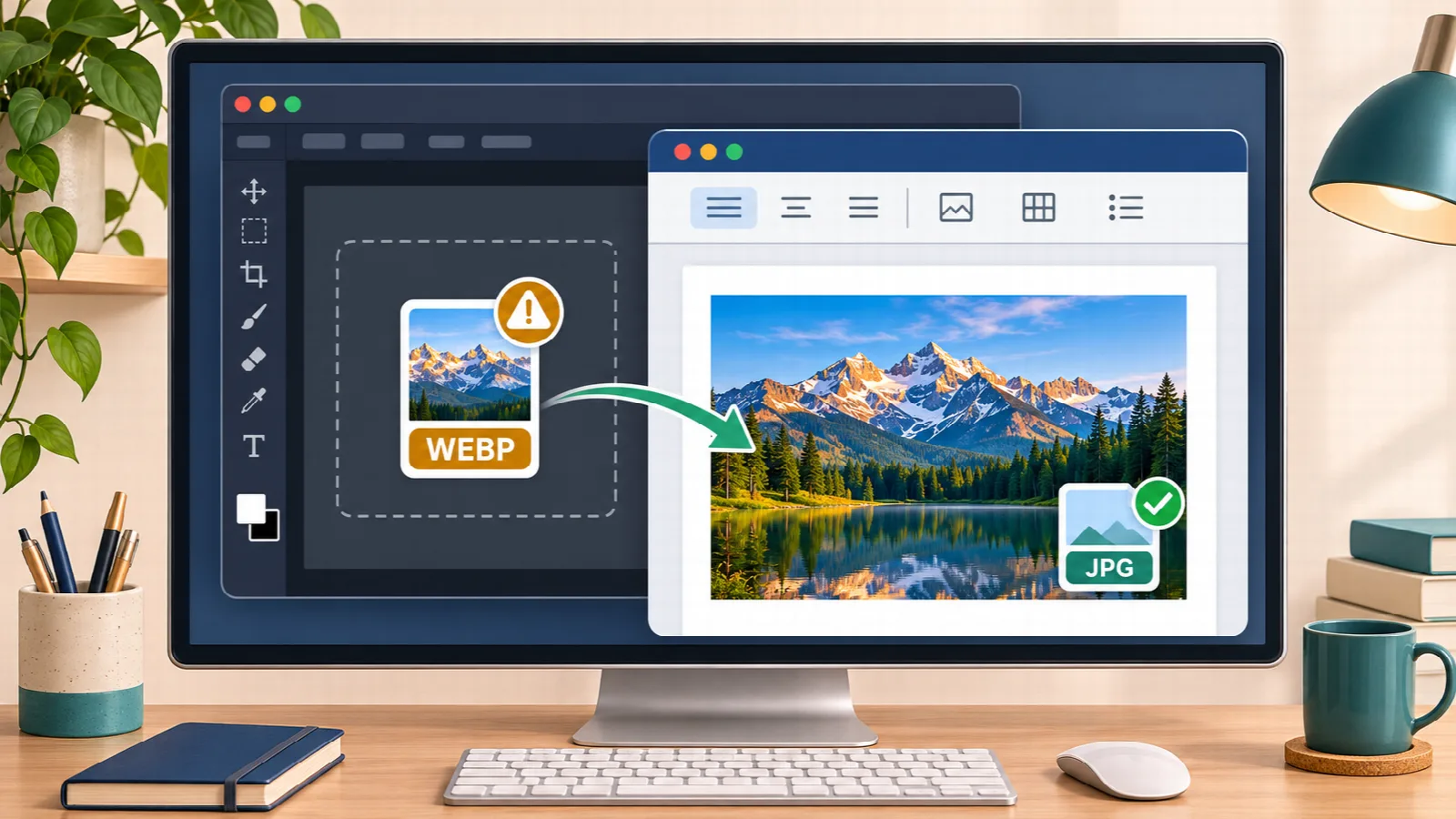
You downloaded an image from the web to insert into a PowerPoint presentation, add to a Word document, or edit in Photoshop. But when dragging the file into your software, an annoying error appears: “Could not complete your request because it is not the right kind of document” or “Unsupported file format”. If the image is a WebP file, this roadblock is very frequent across multiple versions of popular desktop software.
Why do workplace programs and photo editors struggle with WebP?
While modern web browsers handle WebP smoothly, office productivity suites and photo editing suites were historically built on standard libraries for JPG, PNG, and TIFF. In Photoshop, for example, built-in WebP support was only added in newer releases or requires finding and manually placing external plugins.
On corporate laptops or managed office computers where users lack administrator privileges to install plugins or upgrade software, this compatibility gap causes frustrating delays.
The fastest fix: convert to JPG before importing
Instead of wasting time hunting for legacy plugins or trying to rename the file extension manually (which corrupts the file headers), the cleanest workaround is converting the image to JPG or PNG before bringing it into your document.
With WebP to JPG and PNG, you resolve this in seconds: drop the file into your browser window, select JPG, and download the universal image. Photoshop and Word will open it immediately without any error prompts.
Batch conversion for multi-image presentations
If you are putting together an entire slide deck or a lengthy report with dozens of web assets, converting files one by one would be tedious. In WebP to JPG and PNG, you can drop dozens of images at once.
The tool queues and converts all files locally, giving you a convenient button to download everything packaged inside a single ZIP file.
Resize for lighter document attachments
Web images often come in high resolutions that can bloat your Word or PowerPoint documents to dozens of megabytes, making email delivery impossible. Take advantage of our tool's dimension limits to set a proportional maximum width (such as 1200 or 1600 pixels) and keep your files lightweight and quick to share.
Related reading
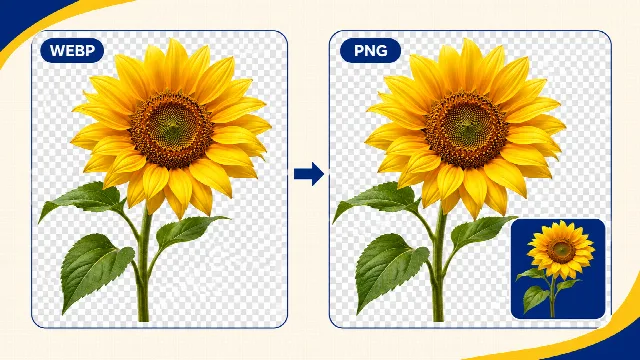
If the graphic you need to use in Photoshop or Word features a cutout background and you want to prevent an ugly white box, read how to convert WebP to PNG while keeping transparent background. If you are preparing files for online portals, see what to do when a website does not accept WebP format.