How to convert WebP images to JPG with universal compatibility?
Drag your .webp files into the converter, select JPG, and produce files fully compatible with any version of Windows, macOS, Photoshop, or web portal.


Images
Convert WebP images to JPG or PNG on your device with tailored compression quality and distortion-free proportional resizing.
Downloaded an image from the web in .webp format and cannot open it in Photoshop, the default Windows viewer, or upload it to a form? WebP to JPG and PNG solves this common frustration in seconds, right in your browser with complete privacy.
Select the perfect output format for your needs: choose JPG for universal compatibility across any operating system, software, or web portal; or choose PNG whenever you need transparent backgrounds and pixel-perfect line sharpness. Easily adjust compression using the intuitive quality slider or quick presets.
Need to reduce a large picture to fit into an email attachment or website upload limit? Set optional maximum width or height bounds. The app strictly maintains 100% of the original aspect ratio, ensuring your photos never look stretched or squished. If your image is already within bounds, its native dimensions remain untouched.
Process single files or batch-convert dozens of images at once. Download converted images one by one or get everything together in an instant, client-generated ZIP archive. All processing runs entirely in your device memory with zero server uploads.
Drag your .webp files into the converter, select JPG, and produce files fully compatible with any version of Windows, macOS, Photoshop, or web portal.
Selecting PNG uses lossless compression to preserve full visual fidelity, crisp vectors, and transparent alpha backgrounds without artifacts.
Use the continuous quality slider or quick presets (Light 65%, Balanced 85%, Maximum 100%) to find the ideal balance between visual clarity and file size in KB.
Enter a target maximum width or height. Proportional scaling is computed automatically, ensuring your photos never suffer from distortion or unnatural stretching.
Select dozens of WebP photos at once, start batch processing, and download all converted files bundled into a single organized ZIP package.
Conversion runs entirely in your browser memory using local HTML5 Canvas APIs. No files, metadata, or images are ever uploaded to cloud servers.
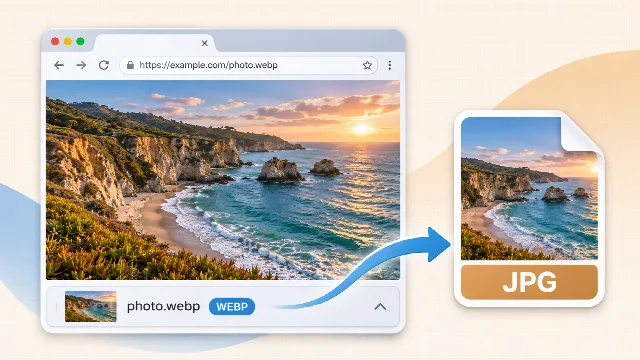 How to save an image from the internet as JPG instead of WebP?Did you save an image from the web only to find a .webp file? Learn why websites use it and how to quickly convert it to JPG on your phone or PC.Read article
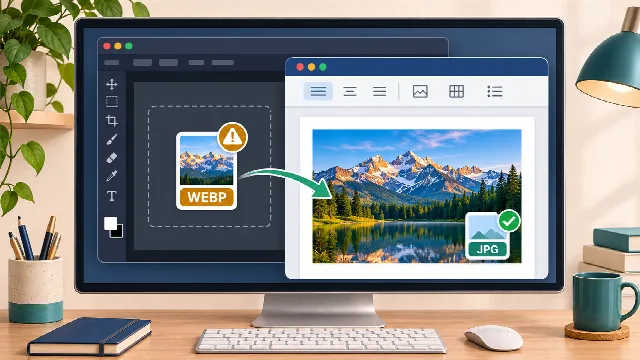 WebP file will not open in Photoshop or Word: how to fix it?Getting an unsupported format error when importing WebP into Photoshop, Word, or PowerPoint? Discover how to resolve it quickly without…Read article
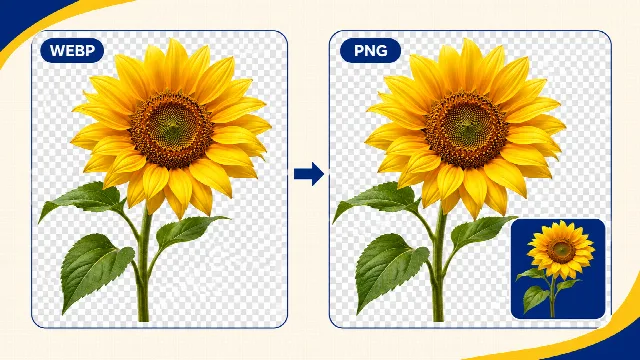 How to convert WebP to PNG while keeping transparent background?Did converting a WebP image turn your transparent background into a solid white box? Learn why it happens and how to convert to PNG preserving…Read article
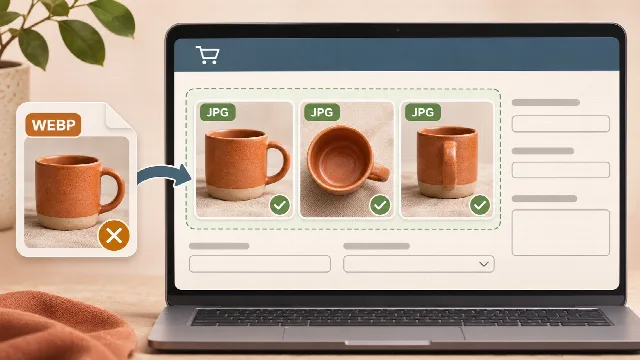 Website does not accept WebP format: how to convert and upload?Tried uploading product photos or listing assets only to have the website reject WebP? Discover how to batch convert to JPG or PNG and resolve…Read article
WebP was developed to speed up web page loading with smaller file sizes. Modern browsers save in this format by default, although older software and upload portals still require JPG or PNG.
Choose JPG for everyday photos and general images to achieve smaller file sizes and 100% universal compatibility. Choose PNG for logos, screenshots, and illustrations that contain transparency or sharp lines.
The image will have its resolution scaled down proportionally to meet your specified boundary, reducing file size without distortion. If the original image is already smaller, its native size is preserved.
Yes. The UI is fully touch-optimized for mobile devices, and the app includes an offline Service Worker, allowing you to convert images even in airplane mode or with no connectivity.
No published answers yet.

Resize multiple images to custom dimensions while preserving aspect ratio. Choose JPG or PNG and download a neatly organized ZIP with originals and versions.

Remove photo backgrounds directly on your device with precision sensitivity control, edge refinement, and transparent PNG download.

Convert iPhone HEIC and HEIF photos to JPG or PNG on your device with tailored compression quality and distortion-free proportional resizing.