
Articles
Website not loading: what information should you send to support?

“The website will not load” starts the conversation, but support still needs to know which address failed, when it happened and what appeared on screen. A clear report helps the team find the right event and reduces repeated questions. You do not need networking knowledge to collect useful evidence.
1. Identify the address that fails
Note the domain and explain whether the home page fails or only one section is affected. Do not share passwords, tokens or private links contained in an address. For a Site Status check, the domain or subdomain is enough: the service does not test every individual page.
2. Record the time, time zone and exact message
Say when the problem occurred and whether it is still happening. Include your time zone or city so support can compare it with server logs. Copy the error text or take a screenshot showing the message. Hide names, email addresses, customer data and unnecessary account details.
If a code such as 403, 429 or 503 appears, copy it without guessing what it means. Save any request or support identifier as well. A blank page, a refused connection and an access-denied message give the investigator different clues.
3. Compare Wi-Fi and mobile data
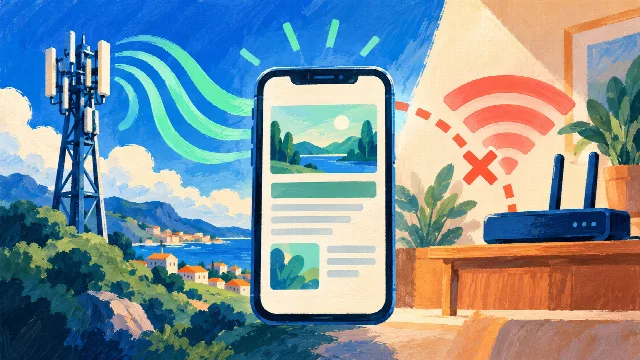
On a phone, try the same address on the affected network, then turn Wi-Fi off and use mobile data. Record both results close together in time. Also note whether another device on the same Wi-Fi has the problem.
You do not need dozens of checks. A clear comparison such as “fails on two devices on Wi-Fi, works on mobile data” already helps direct the investigation. Mention a VPN or workplace network if relevant, without changing settings you do not manage.
4. Add an external result and its timestamp
Check the domain with Site Status. The service attempts to reach the website from its own server and lets you copy the diagnosis or generate a PDF carrying the 1kApps logo. Send this alongside your description of what happens on your device.
The report records that external attempt. It does not prove the site works on every network or reproduce the path taken by your connection. Making this distinction helps support compare the evidence without dismissing your access problem.
5. Share your IP only when needed
Support may ask for your public IP address to look for a restriction in the logs. You can view it in the app and choose whether to include it in the diagnosis. Share it through an official private channel rather than posting IPs or screenshots with personal details in public comments.
A message template you can fill in
Hello! I cannot open the following website:
Domain: [fill in]
Affected page, without private data: [fill in]
Date, time and time zone: [fill in]
Exact error message or code: [fill in]
On Wi-Fi: [loads / fails]
On mobile data with Wi-Fi off: [loads / fails / not tested]
Another device on the same network: [result / not tested]
External check and time: [result]
When the issue started: [fill in]
I have attached a screenshot and, if available, a PDF diagnosis. Could you check access to this destination and any restrictions around the reported time?
Should I contact my provider or my host?
If only the fixed connection fails while mobile data works, tell both the internet provider and the website’s support team about that difference. If access is denied, the website operator or host needs to check access rules. If an external test also fails, send it to the host without assuming it proves a general outage.
After a response or fix, retry on the connection that originally failed and report the outcome. If access returns on its own, record when it came back; that can help support correlate the incident too.
Understand the differences between test results
If you support customers, read my website works for me but not for a customer. For refused access, see the signs of possible IP blocking.