
Articles
My website works for me but not for a customer: what should I do?

A customer says your website is down. You open it on your own computer and everything looks fine. Both observations can be true: access may fail for one network, a region or a particular group of visitors. Simply replying “it works here” leaves the customer without a next step.
Ask for the exact address and error
Before changing settings, check that you are both opening the same address, including www or another subdomain. A store at shop.example.com can behave differently from the main site. Ask for a screenshot of the error and the time it occurred, including the time zone. Do not ask for passwords or account recovery links.
Have the customer compare two networks
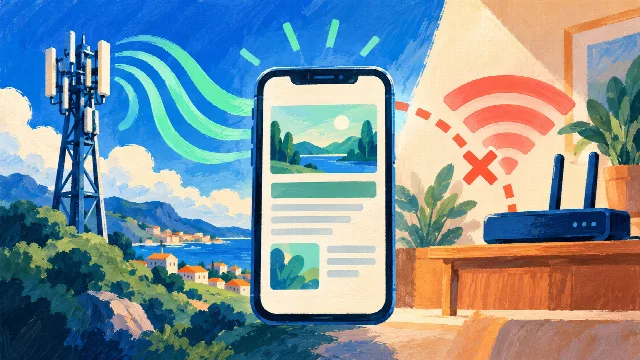
Start with a practical comparison: ask the customer to open the same address on a phone connected to the affected Wi-Fi, then turn Wi-Fi off and try using mobile data. Check that mobile data is available and the phone really switched connections.
If mobile data works while Wi-Fi still fails, the difference between those networks becomes an important clue. The internet provider’s path to the site may have a problem, or the website may be restricting the connection’s public address. This helps direct the investigation; it does not prove the provider is at fault.
Check the website from outside your network
Open Site Status and check the domain. The request comes from the service’s server, giving you a comparison separate from your computer and the customer’s connection. Save the result and its time.
If the external check succeeds and your own connection also works, a general outage is less likely at that moment. Access could still be failing for specific networks or the customer. If the external check fails, include that result when contacting your host: a website’s protection can reject an individual checker, and one test does not represent every visitor.
If access is denied, check the website’s protection
An access-denied message after many page refreshes may point to a temporary restriction. If you manage the site, ask your hosting provider to inspect security logs around the reported time. A 403 response has several possible causes and does not, by itself, confirm an IP block. Avoid switching off all protection just to make the page load.
Which support team should investigate?
When only the customer’s connection is affected, send the internet provider the domain, timestamps and Wi-Fi versus mobile-data comparison. Involve your host when there are access-denied messages, security rules or failures from the external check too. Both teams may need to work together.
Transient problems sometimes clear after a while, but there is no universal waiting period. If sales or customer service are affected, open a support ticket with evidence rather than simply asking the customer to wait. After a fix, confirm that access works on the network where it actually failed.
A helpful reply you can send
“Thanks for letting us know. I can reach the site from my connection and am comparing that with an external check. Could you send the error message, the time it happened and whether the same address opens on your phone with Wi-Fi turned off? This will help us narrow down where access is failing.”
Continue troubleshooting
Learn what to send to support and how to recognize possible IP blocking.
Technical reference
Cloudflare documents several causes of 403 access-denied errors. Its guidance concerns that protection service; not every website uses Cloudflare.