

Articles
Website works on mobile data but not Wi-Fi: how to fix it
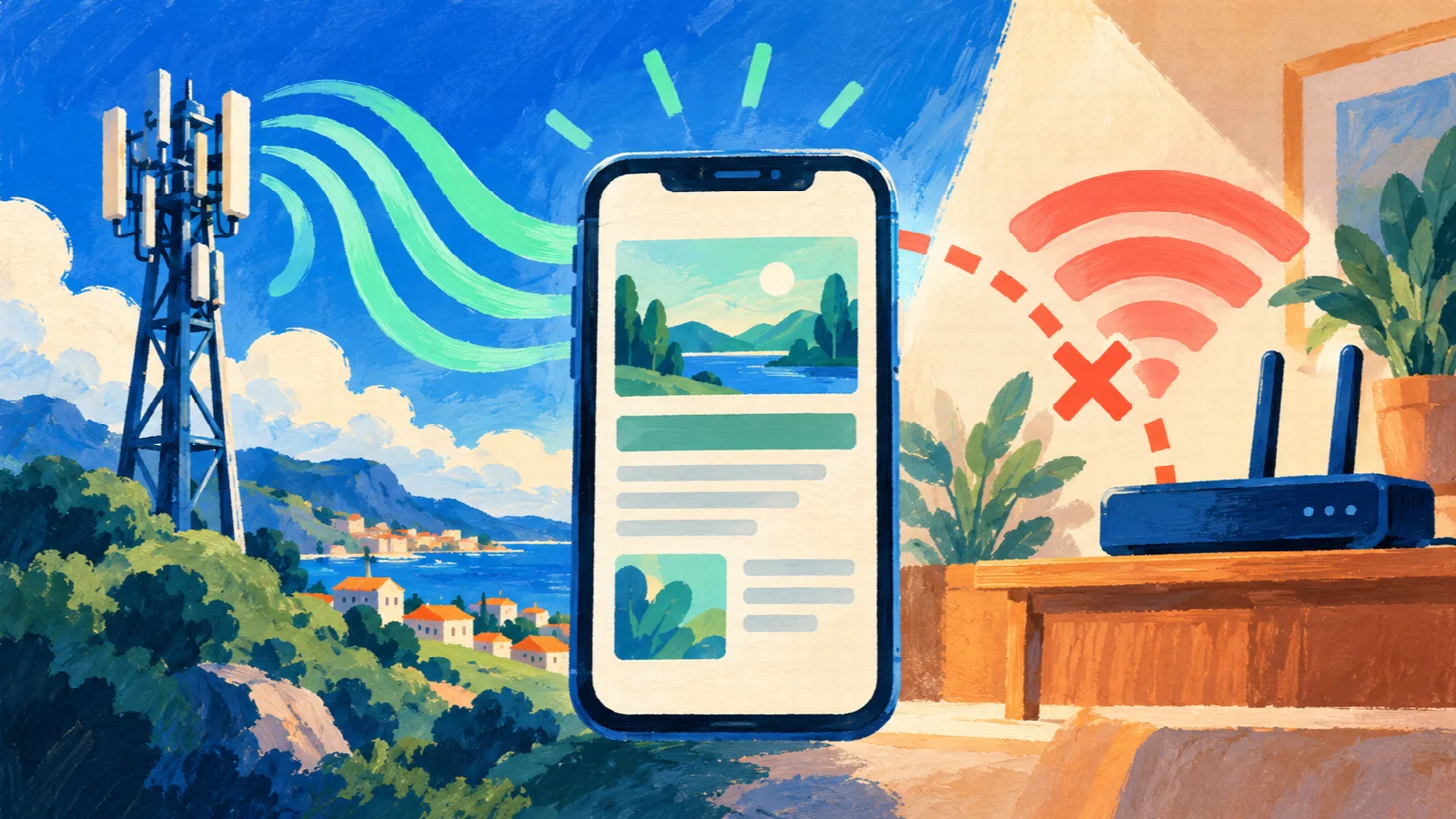
You turn off Wi-Fi on your phone and a website loads straight away over 4G or 5G. Switch Wi-Fi back on and it stops loading. That difference shows the site is reachable through at least one connection and gives you a useful starting point for troubleshooting the network that fails.
Compare both connections on the same phone
Open exactly the same address on both connections within a few minutes. For the mobile-data test, turn Wi-Fi off and check that the phone shows a cellular connection. For the Wi-Fi test, confirm which network is connected. This avoids comparing a computer with a phone and assuming every difference comes from the network.
If you use a VPN or a feature that routes browsing through another server, note that too. It can change the connection path and complicate the comparison. Do not change security policies on a workplace network yourself.
Do other websites fail on Wi-Fi too?
If several websites fail, check whether the internet connection is down or the network needs a sign-in or acceptance screen. Being connected to Wi-Fi does not mean the router has internet access. See whether another device on that same network has the problem.
If other websites work but one address fails on several devices connected to Wi-Fi, weak wireless reception becomes a less likely explanation. The path to that website or a restriction affecting the connection deserves investigation.
Check whether the site responds from another network
Use Site Status to check the domain from the service’s server. A successful external result alongside working mobile data points toward investigating the Wi-Fi network, the internet provider’s connection or a website restriction affecting that network. The check cannot automatically tell you which explanation is correct.
Restart the router carefully
If you control the network and can interrupt the connection, warn other users and restart the modem and router following the manufacturer’s or provider’s instructions. You can disconnect power, wait about a minute and reconnect, while respecting any instructions specific to the equipment. Wait for the connection lights to settle before testing again.
A restart can clear a temporary fault, but it does not guarantee a different public IP address. Do not press Reset: a factory reset is different from a restart and can erase settings required for internet access.
Contact the website if access is denied
Save any access-denied or too-many-requests message. Avoid repeatedly refreshing the page, since doing so may keep triggering a restriction. Read about signs of possible IP blocking.
What to tell your internet provider
Explain that the address loads on mobile data but fails on the fixed connection. Include the domain, time and time zone, exact error and whether other devices on the same Wi-Fi are affected. Add the external result and whether restarting the router changed anything. This gives support a much better starting point than “my internet is bad”.
If access returns later, note the time. Some problems are transient, but there is no guaranteed recovery time in minutes or hours. If it persists, ask support to investigate access to that specific destination rather than changing many unrelated settings.
Reference for the initial checks
Microsoft’s Wi-Fi troubleshooting guidance covers connection comparisons and restarting equipment. This guide focuses specifically on a website that works on mobile data.