
Articles
How to put your Wi-Fi password into a QR Code so guests connect without typing
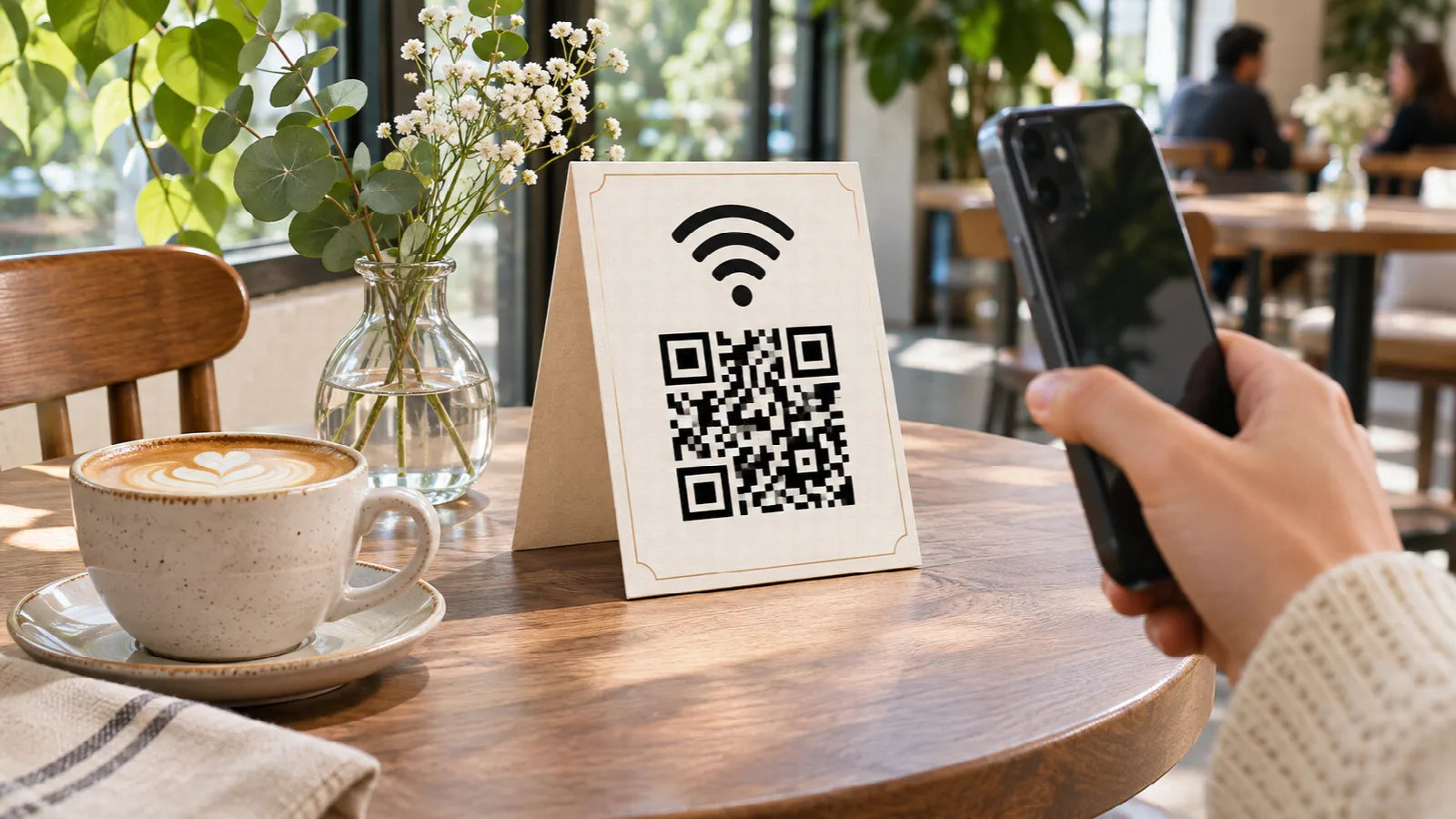
'What's the Wi-Fi password?' If you manage a cafe, pub, restaurant, medical clinic, boutique hotel, or salon, your staff members answer this inquiry countless times each week. Beyond interrupting active service, typing long passwords on mobile keyboards is a constant source of friction: lowercase 'l' confused with uppercase 'I', zeros mistaken for 'O', and irritated patrons re-typing keys multiple times.
The global best practice today is placing a Wi-Fi QR Code on each table or reception desk. With a quick glance, guests merely point their smartphone camera to connect immediately without entering a single letter.
How the universal Wi-Fi QR Code protocol works
Modern mobile operating systems (iOS on iPhones and Android across manufacturers) provide native support for the international Wi-Fi configuration syntax. When a camera identifies the protocol format:
WIFI:T:WPA;S:NetworkName;P:SecretPassword;;;The device does not open a web browser. Instead, the native operating system presents a clean banner prompt asking: 'Join [Network Name] Network?'. Tapping that single notification triggers automatic handshake authentication with the access point, connecting the phone in seconds.
This mechanism works seamlessly across modern WPA/WPA2/WPA3 routers, legacy WEP setups, and open networks.
Security and privacy: generate client-side in your browser
Your business Wi-Fi password is a private security key. Many web converters send network credentials across remote web servers where passwords could be logged or stored in third-party databases.
With Super QR Code, every calculation happens 100% locally in your client browser. Your credentials never leave your device, no data is transferred to remote cloud servers, and the generated image points directly to the universal router standard with total privacy.
Step-by-step: generating your Wi-Fi QR Code
Creating your code takes under 30 seconds:
- Open Super QR Code.
- Click the Wi-Fi card.
- Enter your exact network name (SSID), matching upper/lower case letters, spaces, and punctuation.
- Select your security type (most modern routers use WPA/WPA2/WPA3).
- Type your Wi-Fi password (or choose 'No password' if operating an open network).
- Check the hidden network box if your router does not broadcast its SSID.
- Click Generate QR Code and save the high-resolution PNG using Save image.
Hospitality tip: designing table stands and napkin holders with AI
The Super QR Code tool delivers a clean, high-precision code ready for camera recognition. It is deliberately not a physical sign printing studio.
To transform your code into a rustic wooden tabletop stand, acrylic tent card, or napkin dispenser sticker without hiring a design agency, pair it with ChatGPT or Gemini:
- Download the PNG file from Super QR Code.
- Open ChatGPT or Gemini and upload the image.
- Input an actionable prompt like this: 'Act as an interior signage designer for hospitality venues. Create a vertical tabletop stand artwork for a warm, welcoming bistro. Center this Wi-Fi QR Code with a subtle clean frame. At the top, write: Make yourself at home & connect to our Wi-Fi. Below, add: Point your phone camera to connect effortlessly. Format the design for a 4x6 inch (10x15 cm) cardstock print.'
- Download the generated visual, print it on premium textured matte paper, and slip it into small slotted wooden display blocks on each dining table.
Guest network best practices
To ensure a seamless, secure internet experience for your patrons:
- Segregate guest devices from internal systems: enable a dedicated 'Guest Network' on your router. This isolates patron devices from payment terminals, internal office computers, and security cameras.
- Avoid confusing special characters in the SSID: standard alphanumeric characters guarantee instant recognition on both budget Android devices and flagship iPhones.
- Verify on multiple phone brands: always confirm that pointing a standard iPhone camera and an Android camera brings up the one-tap join prompt immediately.