
How to install 1kApps apps on Windows, Linux, Mac and Android
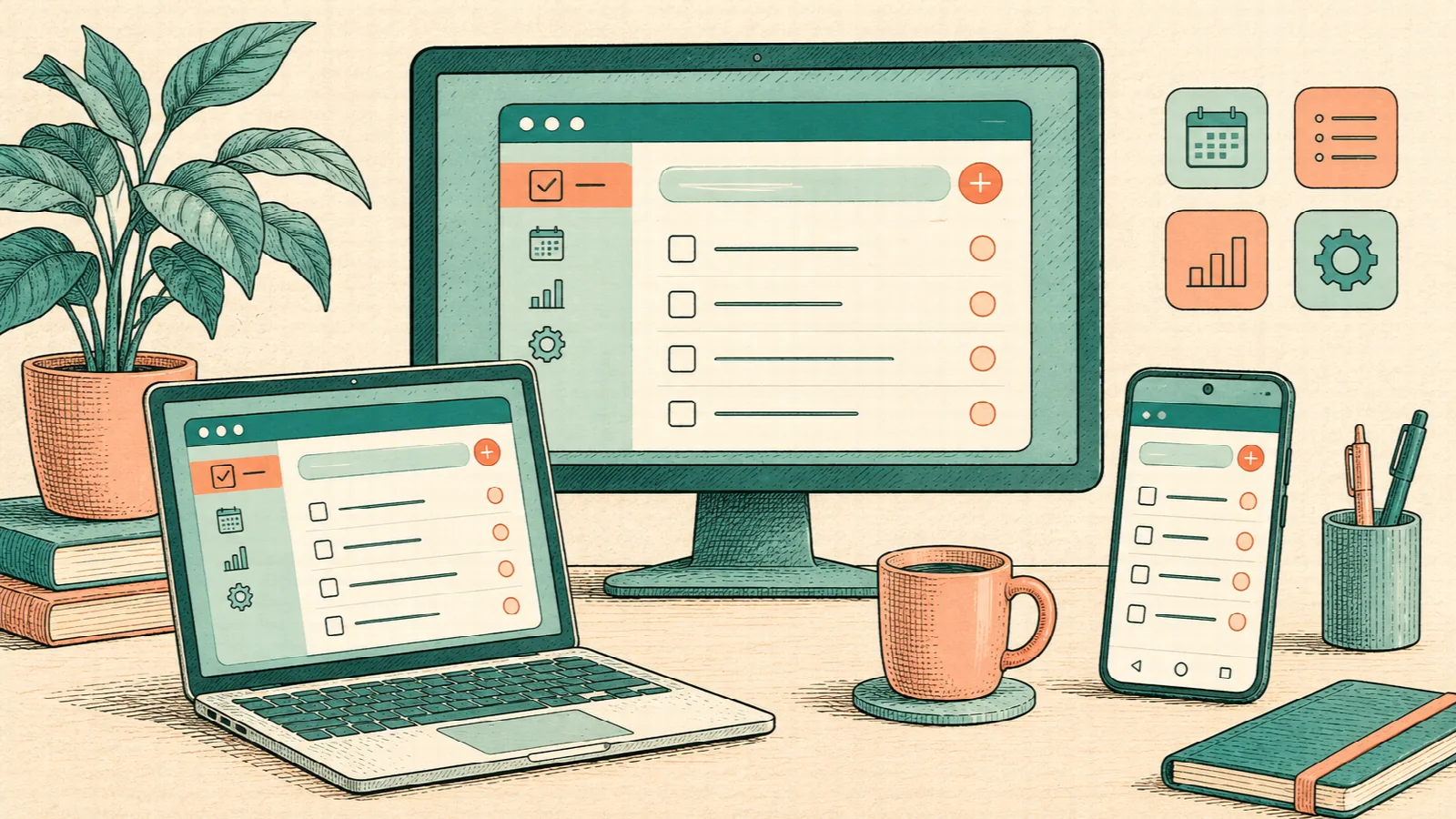
Use a tool often? Installing a 1kApps app gives you a direct way back: open it from its icon or your device’s app search, depending on the system. These are cross-platform apps that you can also use directly on the web.
This guide covers Windows, Linux, macOS and Android. Prefer an up-to-date version of Google Chrome or Microsoft Edge; the Android steps below use Chrome. For iPhone and iPad, follow the dedicated Safari guide.
1. Open the app you want to install
Choose a tool from the 1kApps catalog. On its product page, select Open on the web to enter the app. If the installation button already opens the browser’s confirmation, you can use that route too.
Check that the tool itself is running. For example, Text Studio opens at https://1kapps.com/apps/1/. Install that open tool so its icon takes you straight there. Do not install this article page as if it were the app.
2. On your computer, confirm installation in Chrome or Edge
Chrome: with the app open, look for the installation icon near the address bar. Otherwise, open the three-dot menu and look for Cast, save, and share → Install page as app. Confirm the dialog. Labels can vary with your browser’s version and language.
Edge: look for installation in the address bar or under three dots → More tools → Apps → Install this site as an app. Confirm. Microsoft’s help explains that route; Chrome’s help covers its options.
3. Find your app on Windows, Linux or Mac
Windows: search for the app’s name in Start. Depending on the options your browser offers, pin it to the taskbar or create a desktop shortcut.
Linux: look for the app in your desktop environment’s application launcher. Shortcut location and menu integration vary between distributions and desktops; open your browser’s app manager if needed.
Mac: search for the app by name and keep its icon in the Dock where that option is available. This guide favors Chrome and Edge for a consistent route across computers.
To find an installation, enter chrome://apps in Chrome’s address bar or edge://apps in Edge’s. These are internal browser pages, not Internet searches.
4. On Android, install through Chrome
Open the app in Chrome and tap Install if the app offers it. Alternatively, open three dots → Install and create shortcut → Install. Some versions show Install app or Add to Home screen; choose installation when offered and confirm the system prompt.
Then look for the icon on your home screen or in the app list. A basic shortcut may open a browser tab; app installation provides a separate app experience where supported. See Chrome’s official Android instructions.
Can’t find an installation option?
Check that you opened the actual app, update your browser and try a regular window. If a social network or messenger opened the link, copy the app’s address into Chrome or Edge. Built-in browsers may not offer installation. An organization may also restrict it on managed devices.
Installation makes access easier; your files stay on your device
Local-processing features work with your texts and files on the device itself, without sending them to 1kApps for processing. Installing does not sync devices or guarantee that everything is saved: some tools keep data only while open. Save or download results you want to keep. Features that query online services still need a connection.