Meet 1kApps: cross-platform apps to install or use on the web
You need to tidy up some text, check whether a message fits a character limit, or find out whether a website is responding. These are simple tasks, but finding the right tool can take longer than completing them.
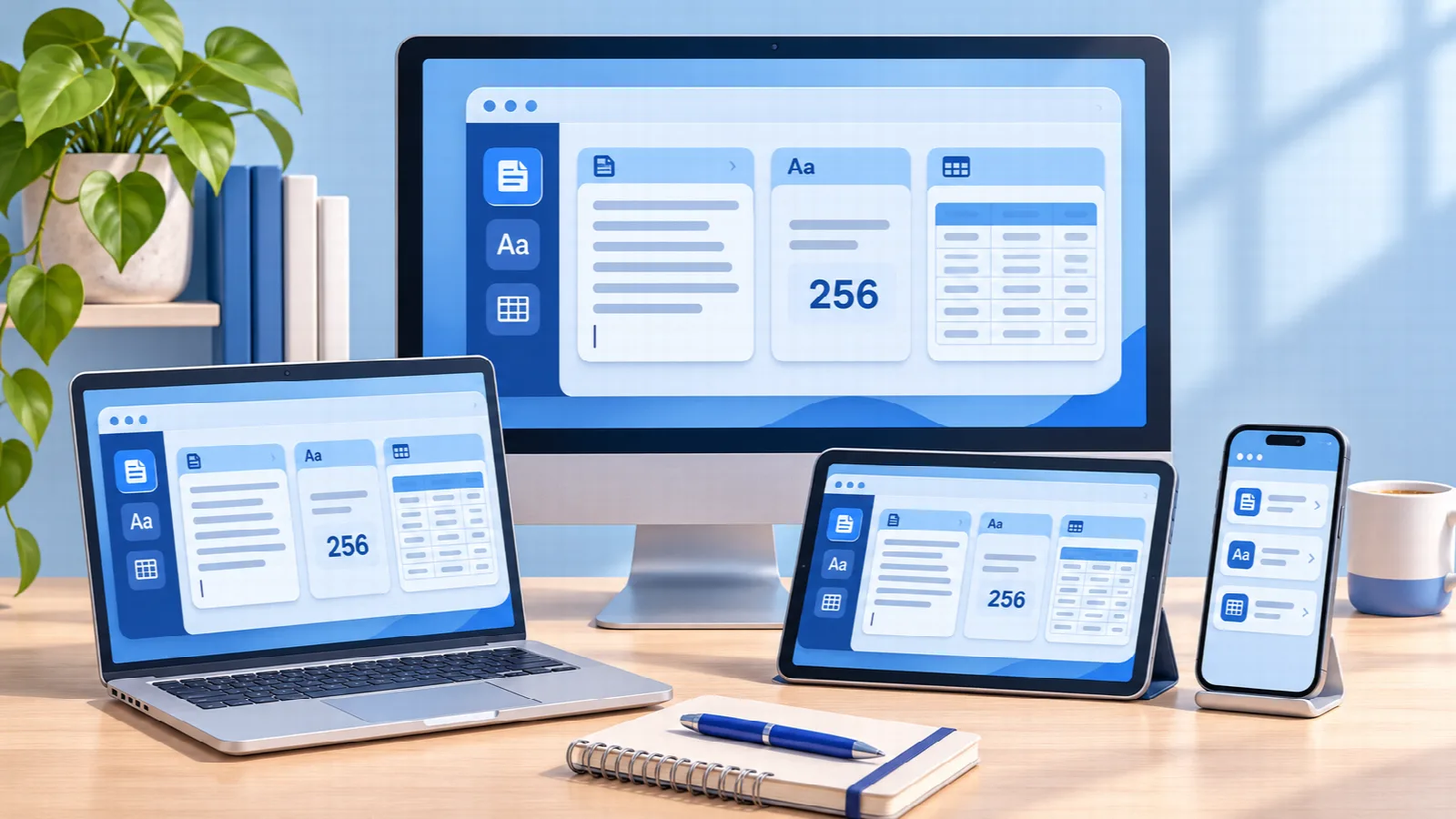
1kApps brings together cross-platform apps that you can install or use directly on the web. Choose how to access your tools: through the browser or an app icon on your device. The idea is to make everyday tasks easier and keep useful apps close at hand.
What can you find on 1kApps?
A catalog of cross-platform apps with clearly defined purposes, with no mandatory account for free use. Each app has its own page describing what it does, its available features, and the options to open or install it.
Need to clean up a list or change capitalization? Text Studio offers tools for editing text and files, with processing on your own device.
Preparing a post or checking the length of a message? Character Counter shows characters, words and lines, and lets you track limits as you write.
A web address will not open and you want more information? Site Status checks it from the 1kApps server and displays the result. This helps you investigate without replacing every test of your own connection.
The aim is to connect a need with a solution: you arrive with a task and find an app that can help you complete it.
Installed or on the web: choose how to use your apps
In the app catalog, choose a tool and find the options to open it on the web or install it. You can try it in your browser, keep using it that way, or install it to access it from your device.
If you return to the same tool often, installation makes opening it more direct. On compatible devices, the app gets an icon and can be found among your applications, without having to look up its page again in the browser.
This flexibility comes from PWA technology, which brings apps to computers and mobile devices, including Windows, Linux, macOS, Android, iPhone and iPad, depending on the browser and system version. You can use the same tool across platforms, without that implying automatic synchronization of your data. MDN explains how PWA installation works.
From a link to an icon: an easier way back to your app
Imagine using Character Counter every day. Once installed, you can open its icon to start a new task. On a computer, it may appear in the app menu and app search; on a phone, on the home screen. The available integration varies by device.
Installation happens through the browser and does not require finding the app in Google Play or the App Store. On 1kApps, the installation option and the app's own guide help you follow the route available on your device. The different installation methods are described in the web.dev PWA guide.
On iPhone or iPad, start by opening the app's web version in Safari. With the app itself open, use the sharing menu to add it to the Home Screen.
Your text and files are processed on your own device
In local-processing features, the text and files you provide are handled on your device. This content is not sent to the 1kApps website or transmitted over the internet for processing. Text editing in Text Studio and counting in Character Counter work this way.
Think of a spreadsheet being checked for duplicate records: in a tool with local processing, the file is read and duplicates are identified on your device. The spreadsheet does not need to be uploaded to a server for that task. This comes from how the tool is built: the work happens on the device rather than sending the file away for remote processing.
When an app offers local saving, the data stays in that device's browser storage. Other tools keep content only in memory while they are open: local processing does not mean automatic saving. Use the save or download options when you want to keep a result.
The exceptions are features that announce or require an online operation. Site Status, for example, sends the entered address to the 1kApps service to check the website's response. In those cases, a connection is part of the task. Local processing of text and files does not mean the entire app stops making connections to load its resources or run online services.
Does installing an app also mean it works offline?
Access through an icon and offline operation are different features. Some 1kApps tools can keep working without a connection after their resources have loaded; others need the internet to carry out their task.
Editing text on your device differs from checking a remote website. Look at each app's information about connectivity, processing and storage. Installing also does not mean your data will synchronize between devices.
Apps with controlled access to device resources
1kApps apps use the browser's protection mechanisms, both on the web and when installed. Features such as selecting files follow access controls and may depend on your choice or permission. The PWA operating-system integration guide gives examples of these controlled interactions.
This combines convenience with controlled access to device resources. Security also depends on each app's implementation and how it is used, which is why information about processing and permissions should be clear.
Choose a task and give it a try
1. Find a tool. Browse the catalog for an app that fits what you need to do.
2. Choose how to access it. Use it directly on the web or follow the installation option for your device.
3. Make the next visit easier. If the app becomes useful in your routine, use the installation option available on your device.
Explore the 1kApps applications and start with a task from your day. The next tool you need could be a link away — and, once installed, an icon away.